
Not charging does not always mean a failed port
iPhone Charging Port Repair Auckland
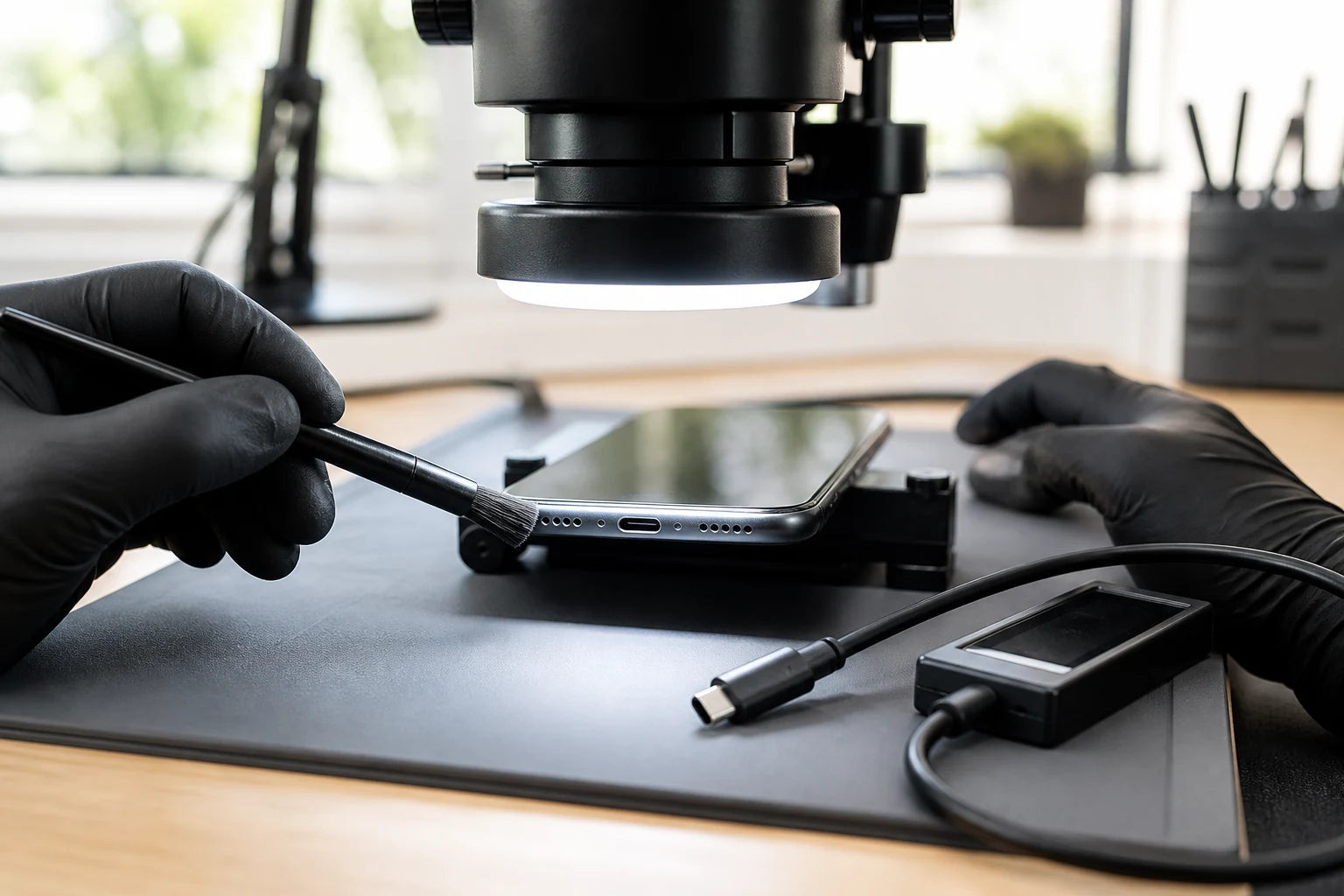
A loose cable, compacted debris, liquid, a worn connector, battery condition and charging circuitry can produce similar symptoms. A safe charging assessment starts outside the phone with the accessory and visible connector condition, then moves inward only when the evidence supports it.
Answer first
What to know before choosing a repair
MoboPlus assesses Lightning and USB-C charging symptoms for supported iPhone models at Westgate, Auckland. Bring the iPhone and the cable or adaptor that shows the problem. We check accessory, debris, moisture, battery and port-related causes before recommending cleaning, port work or further diagnosis.
01 · Before booking
Safe checks that do not involve digging into the connector
Stop immediately if the phone or cable is wet, the connector is burnt, the phone is swollen or it becomes abnormally hot. Do not use metal, a cotton bud, paper or compressed air inside the port.
Accessory and power checks
- Try a known-working cable of the correct connector type.
- Try a suitable adaptor and a different wall outlet.
- Check whether the same cable works with another compatible device.
- Remove a case only if it prevents the plug from seating fully.
- Note whether wireless charging works on a supported dry iPhone.
Observe without inserting anything
- Use good light to look for visible debris, bent metal or discolouration.
- Note whether the plug seats fully or feels unusually loose.
- Check whether charging, computer connection and accessories fail in the same way.
- Record any liquid-detection alert exactly as shown.
- Disconnect immediately if the connector or phone becomes hot.
02 · Different causes, similar symptoms
Why an iPhone may not charge normally
The pattern is often more useful than the words “not charging”. Tell us whether charging is slow, intermittent, angle-dependent, unavailable after liquid or missing only during computer connection.
| Behaviour | Possible cause | Useful distinction |
|---|---|---|
| No response with one cable | Damaged or incompatible cable/adaptor | Compare with a known-working accessory and power source |
| Plug does not seat or works at an angle | Debris, connector wear, case interference or physical damage | Illuminated inspection and professional cleaning before replacement |
| Liquid alert appears | Moisture in the phone connector or cable end | Disconnect and allow airflow; do not override charging except for a genuine emergency |
| Charges but computer cannot see the iPhone | Cable lacks data support, port contacts, trust/software or computer issue | Test data-capable cable, another port/computer and connector condition |
| Wireless works but wired charging does not | Cable, connector or wired charging path is more likely | Confirm the phone is dry, then assess accessories and the port |
| Neither wired nor wireless charging is stable | Battery, power system, temperature or broader internal fault | Battery and power diagnosis before assuming a connector replacement |
03 · Moisture warning
If iPhone reports liquid in the Lightning or USB-C connector
Disconnect the cable from the iPhone and power source. Apple advises leaving the phone in a dry area with airflow and trying again after at least 30 minutes; complete drying can take up to a day. A repeated alert after drying can indicate a damaged cable, accessory or need for service.
Do not use a hair dryer, external heat, compressed air, cotton swab, paper towel or rice. Inserting objects can damage pins or leave material inside the connector. Charging while wet can corrode contacts and cause permanent connectivity problems.
- Do not repeatedly reconnect the cable to “test” a wet port.
- A dry, supported iPhone may use a compatible wireless charger while the connector dries.
- Tell us what liquid was involved and when the alert first appeared.
04 · Use the least invasive correct route
Cleaning, port work or deeper power diagnosis?
The appropriate route follows the evidence. Replacing a port without checking accessories and debris can add cost without solving the original problem.
Professional connector cleaning
- Often fits when
- Visible compacted debris prevents a sound connection and the pins or port assembly do not appear physically damaged.
- Check first
- Cleaning should use appropriate magnification and tools. It is not a home instruction and cannot reverse worn or corroded contacts.
Charging-port-related repair
- Often fits when
- Known-working accessories fail and inspection or testing supports a physically worn, damaged or corroded connector assembly.
- Check first
- The assembly and related functions vary by model. Ask what will be replaced and which charging, data and audio functions will be tested.
Battery or board-level assessment
- Often fits when
- Charging remains unstable across methods, the phone has liquid or impact damage, power cycling, heat or no signs of life.
- Check first
- A connector replacement cannot resolve an unrelated battery, power-management or logic-board fault.
05 · In-store route
How the charging fault is narrowed down
Bring the usual cable and adaptor. An accessory that fails only intermittently can be difficult to diagnose if it is left at home.
-
Record the charging pattern
We ask whether the plug seats, whether position matters, what alerts appear and whether the fault affects charging, data or both.
-
Test known variables
Suitable known-working accessories and power sources help remove the simplest external causes before the phone is opened.
-
Inspect the connector
Good lighting and magnification are used to look for compacted material, damage, corrosion or an obstruction without blindly scraping contacts.
-
Assess related systems
Battery condition, liquid history, wireless charging where supported and broader power behaviour help determine whether the port is the actual fault.
-
Confirm and validate the repair
After the supported route is agreed and completed, charge stability and relevant data or accessory functions are checked for the exact model.
06 · Test more than the icon
What a useful charging check includes
Seeing a lightning symbol once does not prove that charging is stable. The return check should reflect the original complaint and any functions linked to the connector assembly.
Physical connection
The correct plug should seat consistently without relying on sideways force. A case should not mask an incomplete connection.
Charge stability
The phone should maintain connection under ordinary stationary use with a suitable cable and adaptor, without new heat or repeated disconnects.
Data and accessory behaviour
Where relevant and accessible, computer recognition or supported accessories should be checked separately because some cables charge without carrying data.
Related functions
Depending on the model and assembly involved, microphone, speaker or other nearby functions may need a comparison with the pre-repair baseline.
Quote clarity
Why the exact model and fault matter
We do not publish a made-up universal price. A useful quote depends on the device, part path, condition and what a careful assessment shows.
- Exact iPhone model and Lightning or USB-C connector
- Whether failure affects charging, data or accessories
- Debris, liquid, corrosion or physical port damage
- Battery and broader power behaviour
- Supported cleaning, assembly or diagnostic route and part availability
Questions answered
iPhone Charging Port FAQ
Clear, conditional answers are more useful than promises that ignore the model or damage.
Does an iPhone that charges at an angle need a new port?
Not automatically. Case interference, a worn cable and compacted debris can prevent full seating, while damaged contacts or a loose assembly may require repair. Test accessories and inspect the connector before replacing it.
Can I clean an iPhone charging port with a toothpick or SIM tool?
MoboPlus does not recommend inserting improvised objects. They can bend contacts, compact debris or leave material behind. A professional inspection under magnification is safer, especially when liquid or corrosion may be involved.
What should I do after an iPhone liquid-detection alert?
Disconnect the cable and let the phone and cable dry in an area with airflow. Do not use heat, compressed air, rice or objects in the connector. If the alert persists after drying, arrange service.
Why does my iPhone charge but not connect to a computer?
Some cables supply power but not data. The cause can also be connector contacts, computer port, trust settings, software or the phone. Test a known data-capable cable and another computer or port before concluding the iPhone connector has failed.
Should I bring my cable and charger to MoboPlus?
Yes, particularly when the fault is intermittent or happens with one setup. Your normal accessories provide evidence and can reveal a problem outside the phone.
Can MoboPlus assess both Lightning and USB-C iPhones?
Contact us with the exact model and symptom. Connector design and service route vary by model, and support or part availability must be confirmed rather than assumed from connector type alone.
MoboPlus · Westgate
Bring the exact model and the full story of the fault
Shop 2/12 Maki Street, Westgate Shopping Centre, Massey, Auckland 0814- Monday–Saturday
- 10:00–18:00
- Sunday
- 10:30–17:00
Content reviewed 27 August 2026. Service and parts remain subject to exact-model assessment and availability.