
Laptop diagnostics · Westgate, Auckland
Laptop Repair in Auckland
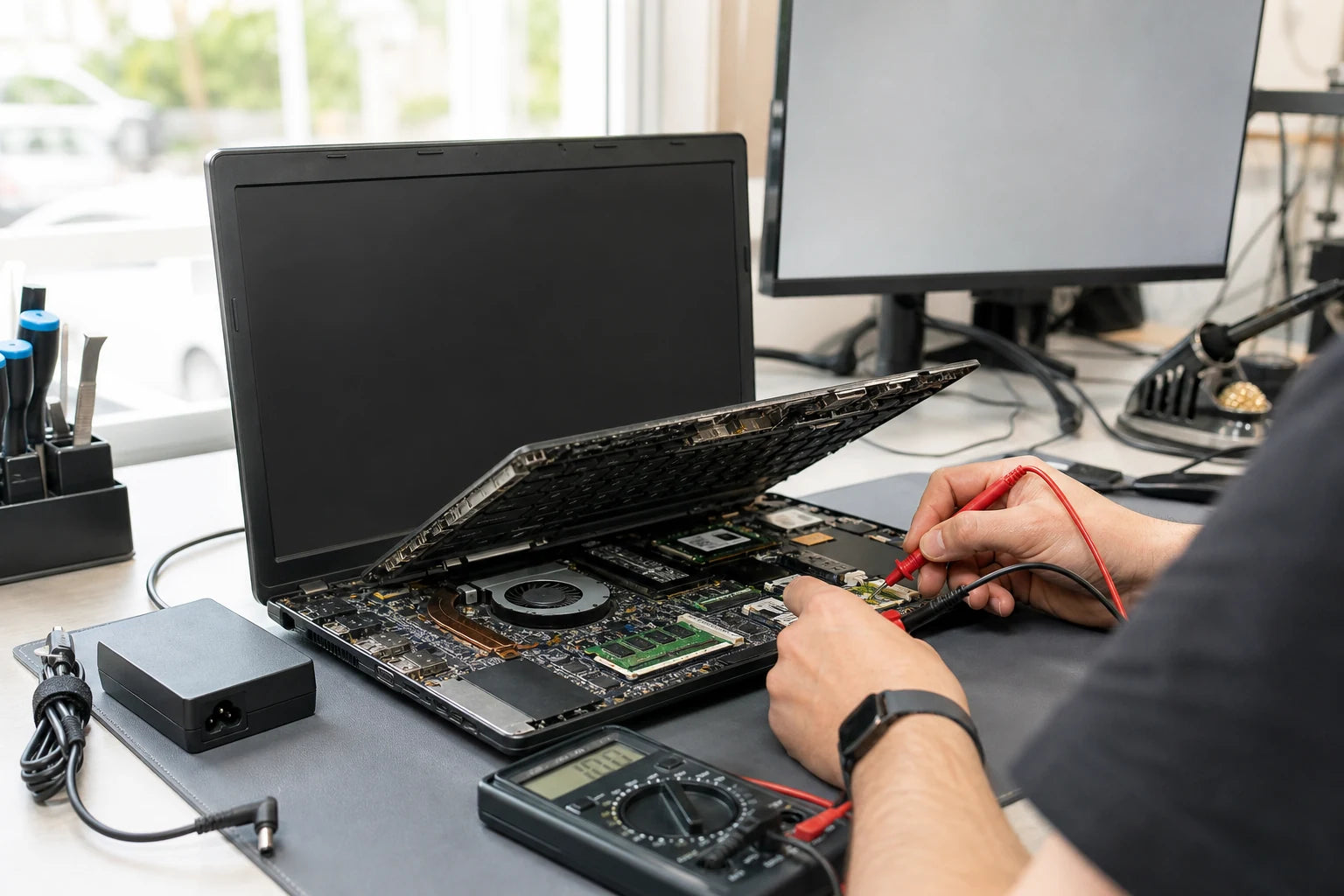
A laptop that will not start, charge, stay cool or run reliably can have several causes. MoboPlus assesses the symptom, explains repair paths and confirms what is involved before parts or deeper work are considered.
Answer first
What to know before choosing a repair
MoboPlus provides diagnosis-led laptop repair support in Westgate, Auckland for hardware, power, display, storage and software faults. The route depends on model, symptom and whether the problem followed an impact, spill, update or gradual decline.
01 · Start with what the laptop is doing
Choose the symptom that best matches your laptop
Two laptops with the same outward problem can need different work. These routes help describe the fault clearly without assuming a component has already failed.
No power or unreliable startup
No lights, a brief flash, repeated restarts or a laptop that powers on only sometimes can involve the charger, battery, charging input, memory, storage or main board. Note any lights, sounds and recent events.
Charging or battery trouble
Short runtime, unexpected shutdowns and a battery that does not charge are related symptoms, but they are not identical faults. Bringing the usual charger helps separate battery behaviour from power-delivery problems.
See laptop battery assessmentCracked, dark or flickering display
A visible crack usually points to panel damage. A blank or intermittent image can also come from a display cable, backlight, hinge area or graphics path, so the screen should not be ordered from appearance alone.
See laptop display diagnosisHeat, fan noise or shutdown under load
Blocked airflow, worn fans, dried thermal material, demanding software or a deeper electrical fault can all raise temperature. Describe whether it happens at idle, while charging or during gaming and creative work.
Slow, freezing or unable to load Windows
Storage health, available capacity, memory pressure, unwanted software and operating-system damage can produce similar delays. Important files should be backed up before repeated recovery or reset attempts.
02 · Diagnosis before replacement
What a symptom can mean — and what should be checked
This is a practical guide, not a remote diagnosis. It shows why replacing the first suspected part is not always the most economical answer.
| Reported symptom | Possible fault areas | Useful first check |
|---|---|---|
| Laptop is completely unresponsive | Charger, DC or USB-C input, battery, power rail or main board | Record charger light behaviour and bring the normal charger |
| Laptop runs but internal screen is black | Panel, cable, backlight, lid sensor, memory or graphics path | Note startup sounds and whether an external display works |
| Battery percentage does not rise | Battery, charger wattage, port, charging circuit or software limit | Test with the correct known charger rather than assuming the battery |
| Fan is loud and performance drops | Dust restriction, fan wear, thermal contact, background load or heat damage | Note the workload, surface and room conditions when it occurs |
| Windows loops, freezes or cannot find a drive | Storage failure, file-system damage, update problem or memory fault | Avoid repeated resets when the files are more valuable than the installation |
| Keys or touchpad fail after a spill | Keyboard layer, connector, corrosion or board-level input circuit | Power off, disconnect charging and do not test repeatedly |
If the laptop contains irreplaceable files, mention that before troubleshooting begins so data preservation can be prioritised over a quick operating-system reset.
03 · A clear route from symptom to decision
How a laptop repair assessment progresses
The scope changes with the fault, but a structured process prevents a vague symptom from turning into an unnecessary parts order.
-
Identify the exact laptop
The brand, full model or product number, charger type and operating system narrow down compatible parts and known design differences. A marketing family name alone is often not specific enough.
-
Reproduce and isolate the symptom
The reported behaviour is checked under relevant conditions. Power, display, storage, thermal or software causes are separated where practical before a repair recommendation is made.
-
Explain the options
The likely cause, uncertainty, required parts and factors affecting timing are discussed. If further inspection is necessary, that should be clear before the customer chooses whether to continue.
-
Complete only the agreed work
The approved repair, replacement, cleanup or software task is carried out. Additional faults discovered during disassembly may change the sensible path and should be assessed rather than silently assumed.
-
Verify the reported function
Testing focuses on the original complaint and connected functions: for example charging and battery recognition after power work, or image stability and hinge movement after display work.
04 · Spend according to the whole device
When repair, upgrade or replacement may make more sense
Age alone does not decide the answer. Device condition, performance needs, data value and the number of simultaneous faults matter more than a single rule.
Repair the existing laptop
- Often fits when
- The laptop still meets your needs, the fault is isolated and the rest of the chassis, storage and cooling system are in reasonable condition.
- Check first
- Confirm the exact fault and part availability before comparing the repair with the current replacement value.
Repair and upgrade together
- Often fits when
- A serviceable older laptop is held back by replaceable storage or memory and the model actually supports an upgrade.
- Check first
- Many thin laptops have soldered components. Compatibility and data migration need to be checked for the exact model.
Replace the laptop
- Often fits when
- Several expensive assemblies are damaged, the device no longer supports required software, or its performance cannot meet the intended workload.
- Check first
- Plan data transfer before the old storage deteriorates further, and ask whether the original drive can be read safely.
05 · Make the first assessment more useful
What to note or bring to MoboPlus
Good fault history can save repeated testing and helps the team focus on the condition that actually interrupts your work.
Device details
- The full model, product number or clear photo of the underside label
- The usual charger when the symptom involves power or charging
- Any password only if it is genuinely required for an agreed software or post-repair test
Fault history
- When the issue started and whether it is constant or intermittent
- Any drop, spill, update, new charger or prior repair before the fault
- Exact messages, light patterns, fan behaviour or sounds during startup
Protect your information
- Back up important files where the laptop is still stable enough to do so
- Describe irreplaceable data before reset, reinstall or storage work is considered
- Remove unrelated accessories and record the condition of the device at handover
Quote clarity
Why the exact model and fault matter
We do not publish a made-up universal price. A useful quote depends on the device, part path, condition and what a careful assessment shows.
- Exact brand, model and product number
- Whether the fault is hardware, software or a combination
- Part specification and availability for the exact revision
- Liquid, impact, hinge or enclosure damage around the failed area
- Data preservation, migration or operating-system work required
- Any additional fault found during diagnosis or disassembly
Questions answered
Laptop Repair FAQ
Clear, conditional answers are more useful than promises that ignore the model or damage.
What laptop brands can MoboPlus assess?
MoboPlus can assess many common consumer and business laptops, but repairability and parts vary by exact model. Send the full model or product number before relying on a brand name alone. Sealed convertibles, gaming laptops and uncommon revisions may require model-specific confirmation.
Why will my laptop not turn on?
A no-power symptom can come from the charger, charging connector, battery, memory, storage, display path or main board. Lights, fan movement and charger behaviour help narrow the cause, but an inspection is normally needed before a particular part can be blamed.
Will a laptop repair erase my files?
Many hardware repairs do not require erasing storage, but no repair should be treated as a substitute for a backup. Storage faults, operating-system recovery and liquid damage can increase data risk. Tell the team which files matter before reset, reinstall or drive work is authorised.
Should I bring my laptop charger?
Bring the charger when the laptop does not power on, charges slowly, disconnects at certain angles or behaves differently on battery power. The correct charger wattage and connector are part of the charging system, so testing the device alone may not reproduce the problem.
Can an overheating laptop be repaired?
Often the cause can be assessed, but the correct remedy depends on whether airflow, fan condition, thermal contact, software load or an electrical fault is responsible. Stop using the laptop if it becomes unusually hot, shuts down repeatedly or the case appears distorted.
MoboPlus · Westgate
Bring the exact model and the full story of the fault
Shop 2/12 Maki Street, Westgate Shopping Centre, Massey, Auckland 0814- Monday–Saturday
- 10:00–18:00
- Sunday
- 10:30–17:00
Content reviewed 27 August 2026. Service and parts remain subject to exact-model assessment and availability.