
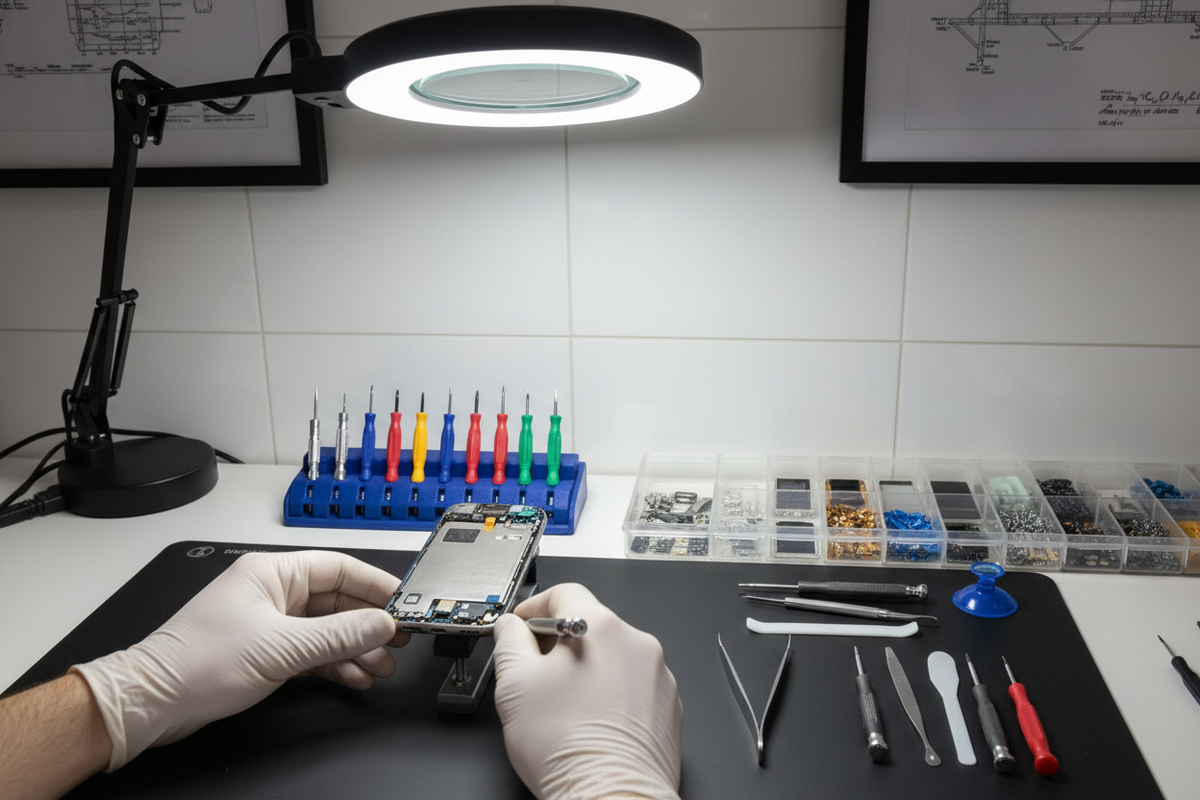
Troubleshooting guide · New Zealand · Updated 26 August 2026
A fast-draining battery, cracked screen or unreliable charging does not automatically mean your iPhone is finished. The useful question is whether the symptom is a safe software issue, a repairable component fault, or evidence that replacement is the better decision.
Quick answer
Which iPhone problems can usually be fixed?
Battery wear, a damaged display, a blocked or worn charging port, many camera modules and some buttons are often repairable after diagnosis. Freezing, app crashes and some connectivity problems may respond to a restart, update or settings check. Stop troubleshooting and seek service if the battery is swollen, the phone is dangerously hot, glass is lifting, liquid is present in the connector, or the device repeatedly shuts down or will not power on.
Start with safety and data, not a repair video
Before changing settings or testing hardware, decide whether the phone is safe to keep using. A normal software fault is frustrating; a damaged lithium-ion battery or wet charging connector can be hazardous.
Swelling or lifting glass
Stop charging and pressing on the device. A swollen battery needs professional handling.
Extreme or unusual heat
Disconnect power, move the phone away from direct sun and allow it to cool without external refrigeration.
Liquid alert or wet connector
Do not force cable charging. Apple advises airflow—not heat, compressed air, inserted objects or rice.
Important data is not backed up
If the phone still works, back it up before resets or service. Hardware condition can deteriorate unexpectedly.
Common iPhone symptoms: what to try and when to stop
| Symptom | Safe first checks | Repair or service trigger |
|---|---|---|
| Battery drains quickly | Review Battery usage, restart, update apps/iOS, check Battery Health | Service message, sudden shutdowns, swelling or persistent heat |
| Frozen or black screen | Charge with known-good equipment, then use the correct Apple force-restart sequence | Still dead after charging/restart, repeated boot loops or recent impact/liquid |
| Will not charge | Try a known-good cable, adapter and outlet; inspect for a liquid alert or obvious debris | Connector damage, recurring liquid alert, heat or charging only at an angle |
| Touch or display fault | Clean/dry screen, remove case or protector, restart, test across the whole display | Cracked glass, dead zones, flicker, lines, lifting panel or biometric fault |
| Face ID or Touch ID fails | Clean sensors, remove obstruction, restart and retry setup | Setup remains unavailable, or failure followed impact, water or screen repair |
| Camera/audio problem | Remove accessories, clean external surfaces, test multiple apps/lenses and restart | Persistent focus, stabilisation, microphone, speaker or lens damage |
| Wi-Fi, Bluetooth or cellular | Check service status, Airplane Mode, SIM/eSIM and another network/accessory | Repeated failure across networks after update/restart or visible antenna damage |

1. Fast battery drain, shutdowns and overheating
Start in Settings › Battery. The activity chart can reveal an app, weak-signal period, background process or unusually high screen use. Restart the phone, update apps and install a compatible iOS security or bug-fix update before assuming the battery itself has failed.
Next open Battery Health & Charging on supported models. Maximum Capacity is useful context, but day-to-day runtime, performance messages, unexpected shutdowns, age and heat behaviour matter too. A battery replacement can restore useful life when the rest of the phone meets your needs.
Heat during demanding games, navigation or charging can be temporary. Persistent heat during light use, rapid percentage changes, swelling or a lifting display is different: stop charging and arrange diagnosis.
2. Cracked glass, dead touch areas and display lines
If the glass is intact but touch is unreliable, clean and dry the screen, disconnect accessories, remove a poorly fitted case or protector and restart. Drag an app icon across the full display to identify repeatable dead areas. Lines, black patches, flicker or touch failure after impact usually need hardware assessment.
A small crack can spread and reduce protection against dust and moisture. Avoid pressing on damaged glass or relying on a screen protector as a permanent repair. Before service, ask whether the quote covers the full display assembly, calibration, warranty and any condition discovered after opening.
3. Charging port, cable and wireless charging problems
Test one variable at a time: a known-good compatible cable, power adapter and wall outlet. Remove a bulky case when testing wireless charging and check whether the same equipment charges another device. Charging that works only when the cable is held at an angle can indicate port wear, compacted debris or connector damage.
Do not scrape the connector with metal, add cleaning liquid or use compressed air. If the phone reports liquid, follow Apple's drying guidance. Repeated alerts with a dry phone or a known-good cable may require service.
4. Liquid exposure: actions that avoid making damage worse
Disconnect the cable. Apple advises gently tapping the iPhone against your hand with the connector facing down, then leaving it in a dry area with airflow. Do not use external heat, compressed air, cotton buds, paper inside the port or a bag of rice. If a liquid alert remains, more drying time or service may be required.
Water resistance is not permanent and can reduce with wear or previous damage. If important data is accessible, back it up. Symptoms can appear later as corrosion develops, so be explicit about the exposure when requesting diagnosis.
5. iPhone will not turn on, is frozen or keeps restarting
For iPhone 8 and later, Apple's force-restart sequence is: press and quickly release Volume Up, press and quickly release Volume Down, then hold the Side button until the Apple logo appears. Older models use different combinations, so follow the instructions for your exact model.
If it remains black, Apple recommends charging before trying again. A phone that repeatedly boot-loops, shuts down at different percentages, became unresponsive after impact/liquid, or stays dead with known-good charging equipment needs diagnosis. Avoid repeated resets when your priority is recovering unsynchronised data.
6. Face ID, Touch ID, camera, speaker and microphone faults
Face ID or Touch ID
Clean and uncover the relevant sensor, restart, install compatible updates and retry enrolment. If setup is unavailable or failure followed a drop, liquid event or display repair, the issue may involve paired sensors or repair calibration and needs a proper assessment.
Cameras
Remove magnetic or clip-on accessories, clean the external lens, test every camera in Apple's Camera app, switch between photo and video, and check focus in good light. Persistent shaking, clicking, fogging, black images or cracked lens glass points beyond a normal app issue.
Speakers and microphones
Test Voice Memos, video recording, speaker playback and a call. Compare results without a case and check whether failure occurs in one app or everywhere. Muffled sound after liquid, distortion at moderate volume or a microphone that fails across apps should be diagnosed.
7. Wi-Fi, Bluetooth, cellular signal and storage-related slowness
For connectivity, confirm there is no provider outage, toggle Airplane Mode once, restart and test another known-good network or accessory. Check the SIM/eSIM and carrier settings. Resetting network settings removes saved network configuration, so understand the consequence before using it.
For slow performance, check Settings › General › iPhone Storage. Very limited free space can disrupt updates, downloads and everyday use. Review Apple's storage recommendations, remove or offload content deliberately, update compatible software and restart. Do not install untrusted “cleaner” or “repair” apps that request excessive access.
Repair, claim your consumer rights, or replace?
| Option | Usually makes sense when | Questions to ask |
|---|---|---|
| Troubleshoot | No safety signs; issue is intermittent or isolated to an app/setting | Can I reproduce it? Is data backed up? Did it follow an update or accessory change? |
| Repair | One understood fault; phone otherwise meets performance, storage and support needs | What part/process, total price, warranty, calibration and turnaround are included? |
| Return to retailer | A product bought from an NZ business may not meet CGA guarantees | Is this wear/accidental damage, or a product fault? What evidence and purchase record do I have? |
| Replace | Multiple costly faults, safety damage, unsuitable storage/performance or limited software usefulness | What is the complete repair cost versus a suitable working replacement with warranty? |
New Zealand Consumer Protection explains that the Consumer Guarantees Act can provide remedies for faulty products bought from businesses. The correct remedy depends on the circumstances and is different from accidental damage or normal wear. Contact the retailer promptly and keep the receipt, fault evidence and correspondence.
Before handing over your iPhone for service
- Back up the phone and confirm important data has finished syncing.
- Record the model, IMEI/serial, condition and fault with photos or video.
- Read Parts and Service History in Settings › General › About where supported.
- Ask for the diagnosis, total price, parts, calibration, warranty and data-erasure risk in writing.
- Follow the service provider's preparation instructions. Apple says never give anyone your Apple Account password or account-security details.
Frequently asked questions
Is an iPhone battery replaceable?
Yes. Battery replacement is a common service option. Check Battery Health, shutdown behaviour, the phone's overall condition and the written quote before deciding.
Should I put a wet iPhone in rice?
No. Apple specifically advises against rice because particles can damage the phone. Disconnect the cable and follow Apple's airflow and drying instructions.
Why does my iPhone only charge at an angle?
Possible causes include cable damage, compacted debris, connector wear or port damage. Test known-good equipment and arrange careful inspection rather than forcing the plug.
Can a cracked iPhone screen still be used?
It may still operate, but cracked glass can spread, cut fingers and reduce protection from moisture or dust. Back up the phone and obtain a repair assessment.
Is it worth repairing an older iPhone?
Often, if the problem is a single replaceable component and the phone still meets your storage, performance and software needs. Multiple faults or a repair close to the cost of a suitable replacement changes the decision.
Should I erase my iPhone before repair?
Back up first and follow the provider's instructions. Apple may require Find My to be turned off and warns that a serviced device may be erased. Never disclose your Apple Account password.
Repair the right fault—or compare a suitable replacement
If the complete repair no longer makes sense, compare current iPhone models, storage, condition, battery statements and warranty terms.
Browse iPhones


